OpenRouter Integration
Access multiple AI models through one account
Overview
OpenRouter gives you access to many AI image generation models (Google, OpenAI, xAI, Flux, and more) through a single account. Unlike other providers where you paste an API key, OpenRouter uses a secure one-click connection. No need to copy or manage keys.
Step 1: Open AI Settings
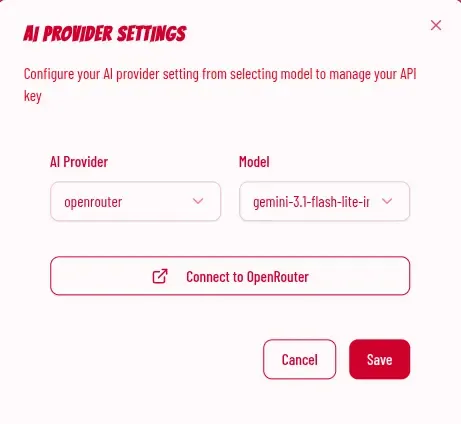
In the Genko Comic editor, click the gear icon to open AI Provider Settings. In the AI Provider dropdown, select OpenRouter.
Instead of an API key input, you will see a "Connect to OpenRouter" button.
Step 2: Click Connect
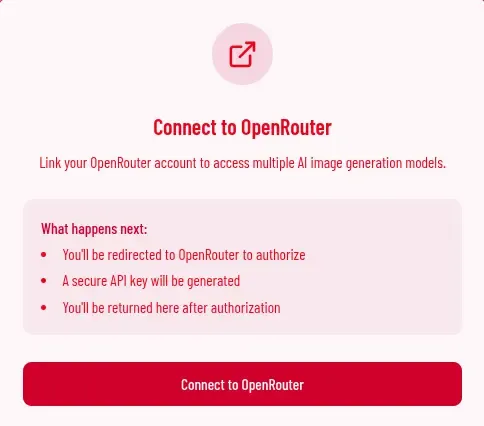
Click the "Connect to OpenRouter" button. A new tab will open with the OpenRouter connection page.
This page explains what will happen: you will be sent to OpenRouter to approve the connection, a secure key will be created, and then you will be sent back to Genko Comic.
Step 3: Authorize on OpenRouter
Click "Connect to OpenRouter" on the connection page. You will be taken to the OpenRouter website to approve the connection.
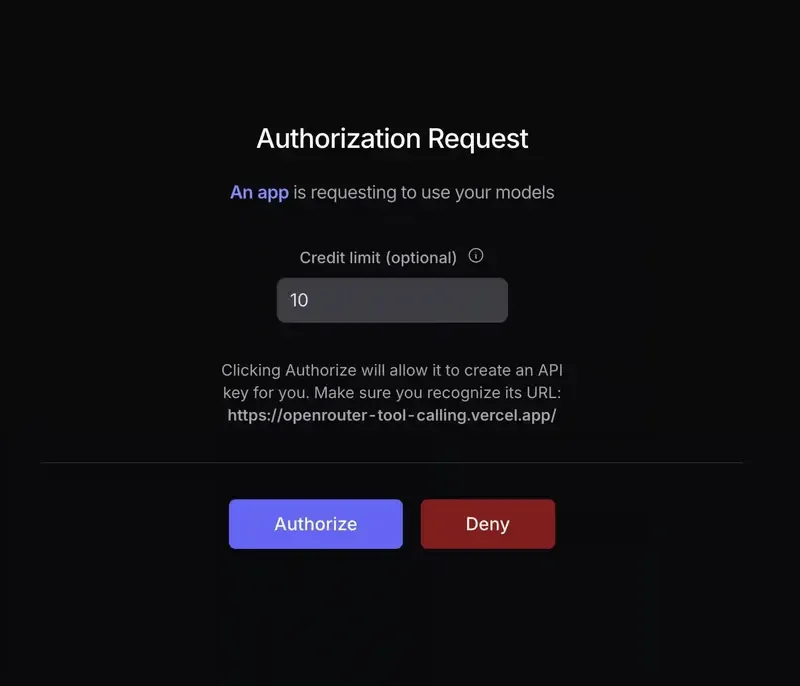
Review the permissions and click "Authorize" to allow Genko Comic to use your OpenRouter account.
Step 4: Connection Complete
After you approve, you will see a "Connection Successful!" message. You can close this tab and go back to Genko Comic.
Back in the editor, the connection indicator will show a green dot next to "Connected to OpenRouter". You can now pick any available model and start generating images.
Available Models
OpenRouter gives you access to models from several providers. Pick the one that works best for your needs.
| Provider | Models |
|---|---|
| gemini-3.1-flash-lite-image, gemini-3-pro-image-preview, gemini-3.1-pro-image-preview, gemini-3.1-flash-image-preview, gemini-2.5-flash-image | |
| OpenAI | gpt-image-1, gpt-image-1.5, gpt-image-1-mini, gpt-image-2, chatgpt-image-latest |
| xAI | grok-imagine-image-quality, grok-imagine-image |
| Flux | flux.2-klein-4b, flux.2-max, flux.2-flex, flux.2-pro |
| Seedance | seedream-4.5 |
Troubleshooting
- Make sure you are logged into your OpenRouter account.
- Try clicking "Reconnect" in the AI Provider Settings.
- If the problem continues, close all OpenRouter tabs and try again from the beginning.
- Check that your OpenRouter account has credits. Some models require payment.
- Try a different model from the dropdown.
- Make sure the connection indicator shows a green dot.