Get Google Gemini API Key
Connect Google Gemini to Genko Comic
Overview
Google Gemini is an AI tool from Google, available through AI Studio. To use Gemini for creating images and text in Genko Comic, you need a Gemini API key. This guide shows you how to get one.
Step 1: Go to Google AI Studio
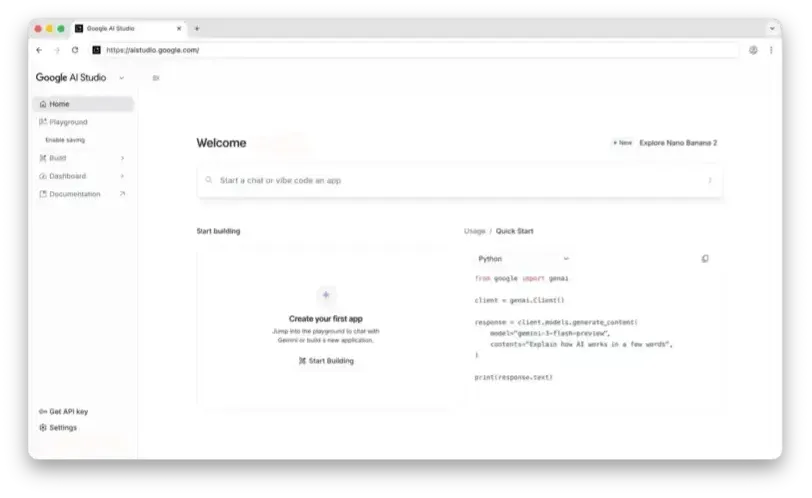
Visit aistudio.google.com and sign in with your Google account. AI Studio is where you can try and use Gemini.
Step 2: Get API Key
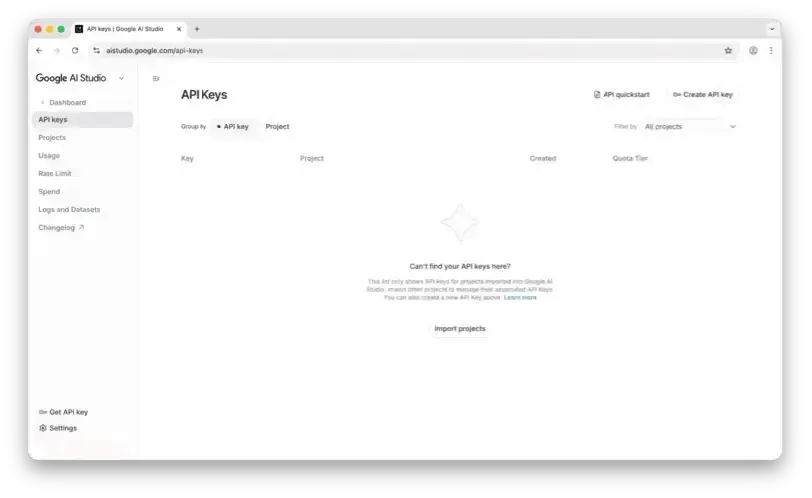
In the AI Studio sidebar, click Get API key. This opens the page where you can create and manage your keys.
Step 3: Create an API Key
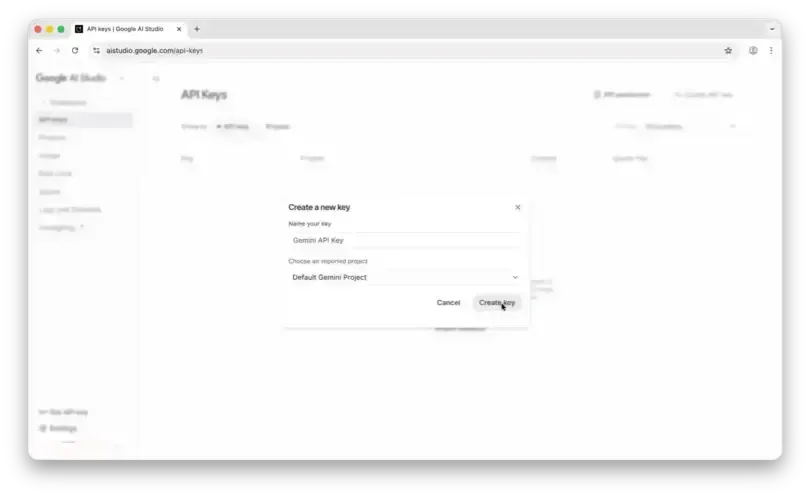
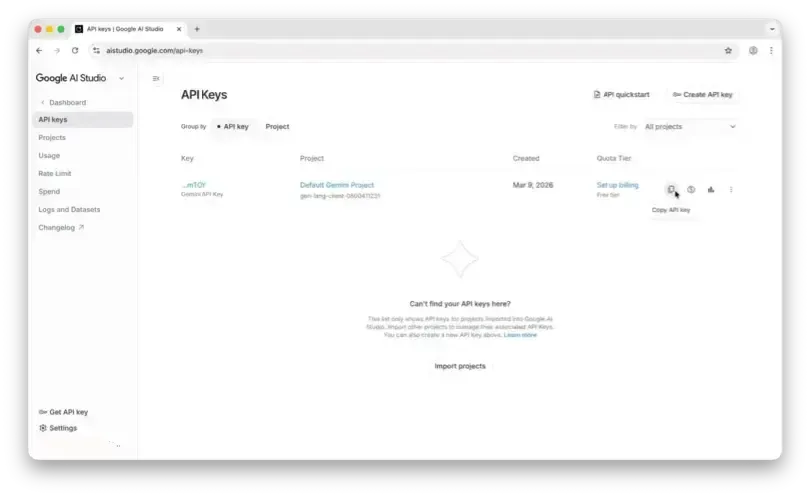
Click Create API key. You'll be asked to pick an existing Google Cloud project or make a new one. Choose or create a project, then click Create API key.
Step 4: Add the API Key to Genko
Open Genko Comic and follow these steps to connect your Gemini API key:
- Click the AI Provider Settings button (gear icon) or go to the AI Dashboard settings.
- In the AI Provider dropdown, select Google.
- Pick a model from the Model dropdown (e.g.,
gemini-2.5-pro,gemini-2.5-flash). - Paste your API key into the API Key field.
- Click Save.
/dashboard/ai.Check If It Works
After saving, try using any AI feature in Genko Comic (like creating an image). If it works, your Gemini API key is set up correctly.
- If you get an error, check that you copied the API key correctly without extra spaces.
- Make sure your Google Cloud project has the Generative Language API turned on.
- Check that you selected the right provider (Google) in the settings.