Get OpenAI (ChatGPT) API Key
Connect OpenAI to Genko Comic
Overview
OpenAI makes GPT (for text) and DALL-E (for images). To use these AI tools in Genko Comic, you need an OpenAI API key. This guide shows you how to get one.
You will need an email address and a payment method to add credits to your OpenAI account.
Step 1: Create an OpenAI Account
Go to platform.openai.com/signup and create a new account. You can sign up with email, Google, Microsoft, or Apple.
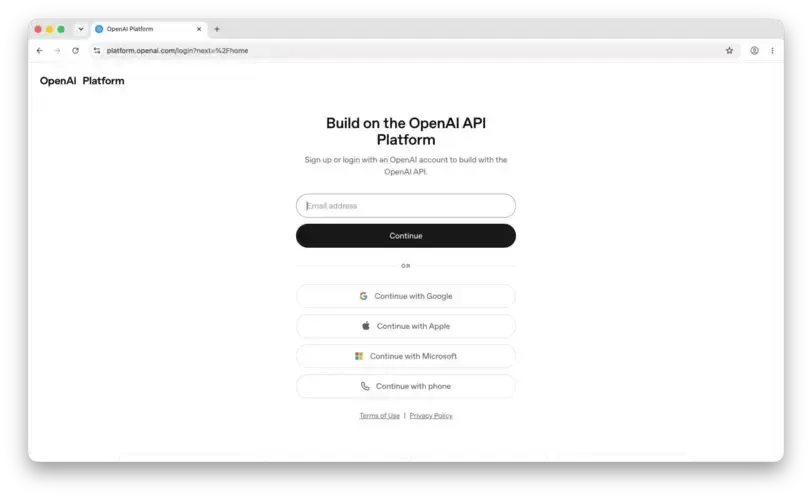
If you already have a ChatGPT account, you can use the same login to access the API platform.
Step 2: Add Credits
In the OpenAI dashboard, go to Billing. You need to add a payment method and buy credits to use for AI features.
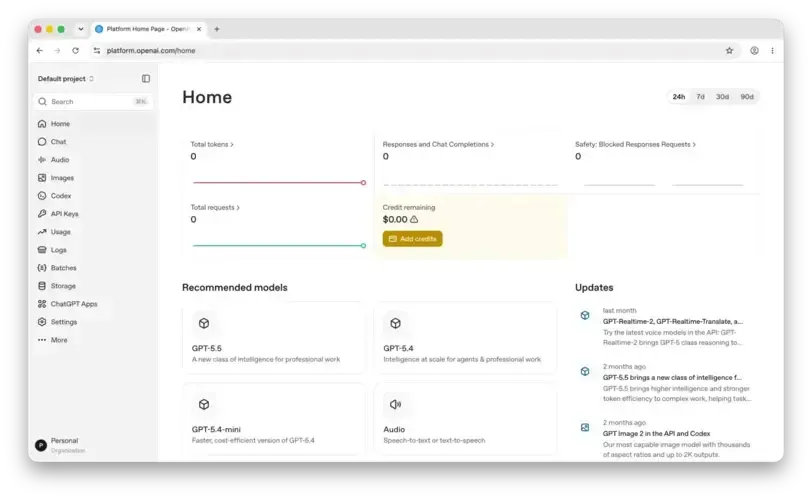
OpenAI charges based on usage, and pricing varies by model. Set a monthly spending limit here to avoid surprises — you can always increase it later.
Step 3: Create an API Key
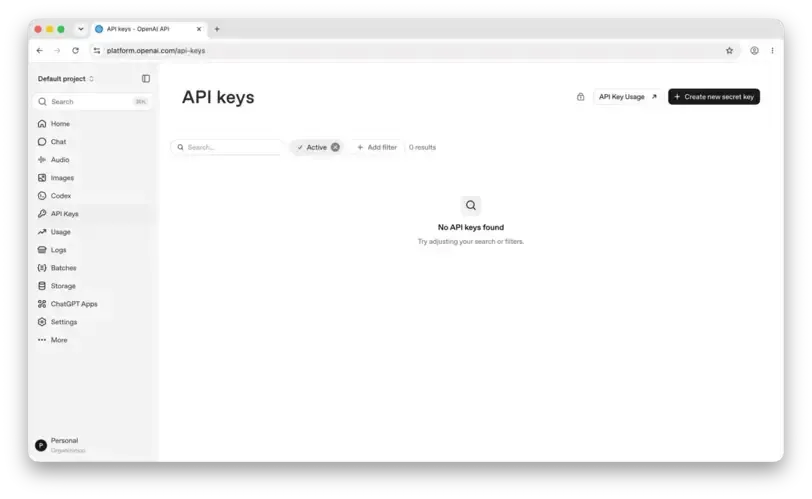
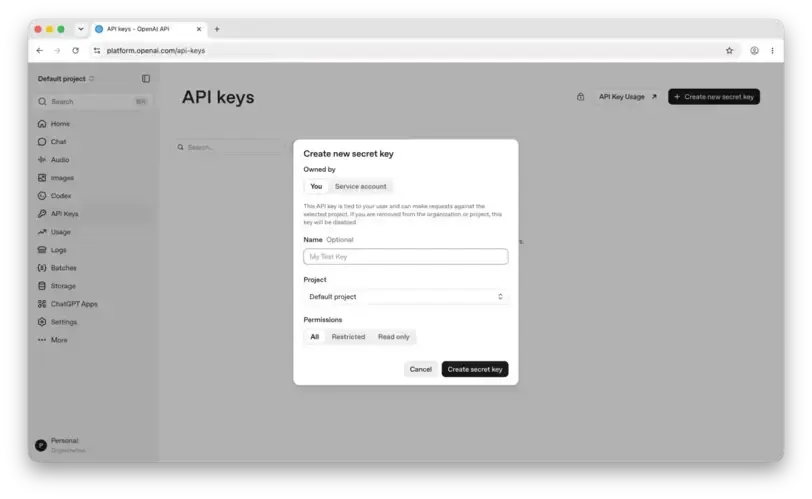
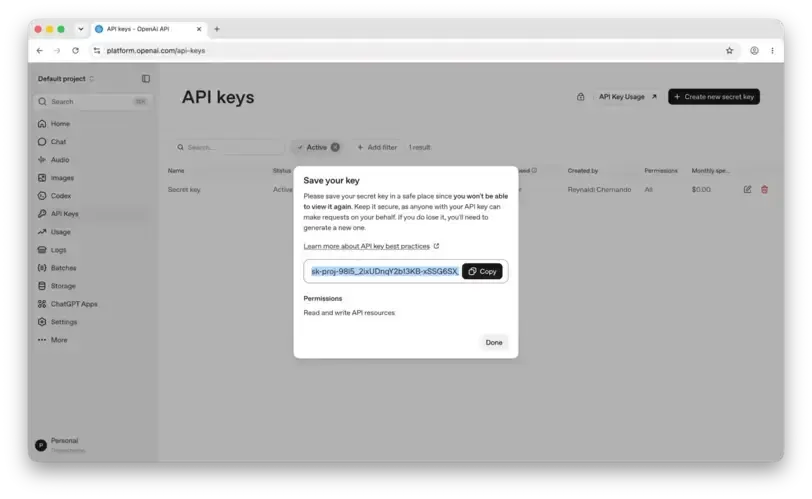
Go to API Keys in your dashboard settings. Click Create new secret key, give it a name if you want, and copy the key that is created.
ℹ️ Important
Copy your API key right after you create it. OpenAI will only show it once. If you lose it, you'll need to make a new one.
Step 4: Add the API Key to Genko
Open Genko Comic and follow these steps to connect your OpenAI API key:
- Click the AI Provider Settings button (gear icon) or go to the AI Dashboard settings.
- In the AI Provider dropdown, select OpenAI.
- Pick a model from the Model dropdown (e.g.,
gpt-4o,gpt-4o-mini,dall-e-3). - Paste your API key into the API Key field.
- Click Save.
💡 Where to Find the Settings
You can find AI Provider Settings in the main editor toolbar or in the AI Dashboard at
/dashboard/ai.Check If It Works
After saving, try using any AI feature in Genko Comic (like creating an image). If it works, your OpenAI API key is set up correctly.
ℹ️ Troubleshooting
- If you get an error, check that you copied the API key correctly without extra spaces or line breaks.
- Make sure your OpenAI account has credits and no spending limits are blocking you.
- Check that you selected the right provider (OpenAI) in the settings.